Purchase Tivimate
There are a few different ways to purchase Tivimate. No matter which way you purchase TiviMate, you are one step closer to one of the best iptv viewers that you will ever use.
Purchase TiviMate
To start the your purchase you will need to go to Tivimate.com , or download their companion app in the google playstore. Create a new account and purchase your subscription. Remember that TiviMate does not include any iptv streams at all. This purchase is to unlock all functionality of the TiviMate app.
YOU MUST PROVIDE YOUR OWN IPTV LINKS FROM A REPUTABLE PROVIDER.
You may also go thru the app step by step below to purchase. Once again we will state, that if you choose the yearly subscription and want to change to the lifetime subscription, then you must wait for your yearly subscription to end before you can purchase the lifetime. You should consider purchasing the lifetime subscription. You can’t beat that price. Everyday you use TiviMate means that your ROI just gets better everyday.
Activate your TiviMate App
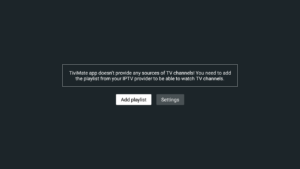
Once you have installed TiviMate, you will see:
“TiviMate Doesn’t provide any sources of TV channels”
“To watch TV channels, please add a playlist provided by your IPTV service”
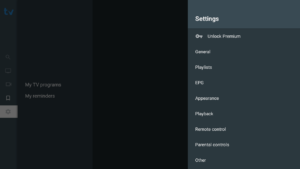
From here you can either click on Add playlist (without using the extra settings above provided by the premium service) or Settings. Click on Settings to proceed to purchase your premium version of TiviMate.
Click Unlock Premium at the very top.
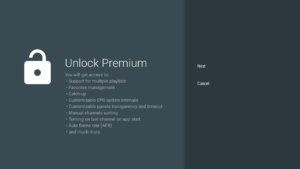
Unlock Premium
You will get access to:
- Support for multiple playlists
- Favorites Management
- Catch-up
- Customizable EPG update intervals
- Customizable panels transparency and timeout
- Manual channels sorting
- Turning on last channel on app start
- Auto frame rate (AFR)
- and much more
Click NEXT
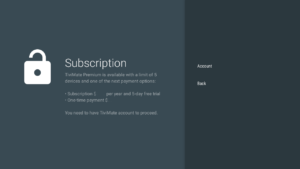
Subscription
TiviMate Premium is available with a limit of 5 devices and one of the next payment options:
- 5-day free trial
- A yearly subscription (if you purchase a yearly subscription, you must wait until it expires if you want to purchase a lifetime with this same account.)
- A lifetime subscription.
You need to have a TiviMate Account and a Google Playstore Account to proceed.
Click Account
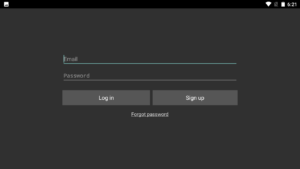
If you have already signed up and created an account, enter your details here and click Log in. If you forgot your password, you can have a reset password emailed to you by clicking Forgot password. If you haven’t already signed up and purchased the tivimate premium, click on Sign up.
TiviMate Companion App
If you don’t have access to google playstore on your box, you can also use the “TiviMate Companion App” on an android device to help purchase and activate. We suggest you go to tivimate.com to sign up and purchase lifetime or yearly. (Remember, if you purchase the yearly and decide later you want to purchase the lifetime membership, that you will have to wait for the yearly to expire. Ensure that any recurring charges are turned off!)
Once you have paid for premium and verified your email address, you can proceed back to tivimate settings and click on Unlock Premium.
Click on Next
Click Account
Enter the email and password you created in the tivimate companion or the tivimate website. Click Log in.
Your subscription account will be listed here. Click Next to Continue. If you want to logout of the tivimate subscription from this device, you can click Log out. If you made a mistake, you can click Back and re-enter you account details.

Activating
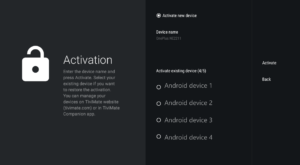
With Tivimate, you can install the premium version on 5 different devices. This next screen will allow you to name your device so you can remember which device you are activating. Click on the Device name to change the name. If this is the first device that you are activating or have remaining slots open, then click on Activate. Different names are great if for instance you have 4 nvidia shields, the default name that will show up is “nvidia shield”. This can become confusing once you have all 5 slots filled it. It is a good idea to ensure each device has a unique name that you can remember. If all 5 slots are filled you can use an existing name by highlighting the O. If the existing name is in use by another device, that device will no longer have access to tivimate premium. If you need to remove a device from your account, you can login to tivimate.com, go to the dashboard and remove a device.
Click on Activate once you have renamed or replaced a device.
Congratulations! You have successfully activated premium features in Tivimate. Click OK

You are now ready to move onto installing an IPTV stream into TiviMate.
Tivimate Setup