Tivimate EPG
How to use EPG
Using the TiviMate EPG (Electronic Program Guide)
WOW! Watching TV and now we are ready to change channels in this wonderful app we call Tivimate.
Disclaimer: we are using Live OTA (over the air/antenna) channels to show you how this all works.
EPG
First thing first. Lets view the EPG (Electronic Program Guide or TV Guide as we used to call it)
There are three ways to access the EPG using the remote. Using the OK button, the Back button and the left direction arrow.
OK Button
From the tv viewing position click ok on the remote.
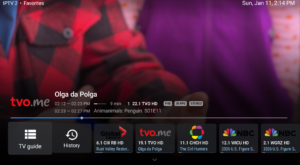
What appears here:
- At the very top is the Subscription name (the one you named when adding your subscription)
- Category you are currently in
- Current system date and time
- At the bottom is the current tv channel logo
- Program name
- Program description
- Program start and end time
- Resolution, frame rate and audio stream
- Next scheduled program, start and end time
- The runtime bar for a visual of time into and time left in program
- TV Guide (EPG)
- History followed by a history of channels you have watched.
Click TV guide to jump to the EPG. You can also use the direction buttons on the remote to move left or right to select History or a recently viewed channel. A direction up or down will also allow you to use other functions. We explain this below. For now, click on TV guide.
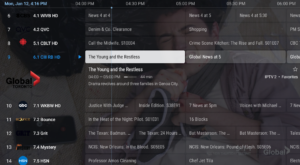
The EPG will appear. Your currently playing channel will be transposed behind your guide. From here, use the direction pad up or down to view the epg for other channels. Use the right direction pad to see future programs in the epg. If you want to go back to the channel you are currently watching, click and hold the back button. Once you have found the channel you wish to view, click ok.